
Our NCAS-branded document templates are simple and straightforward to follow – especially if you’re already familiar with our presentation slide templates.
The templates are designed for internal and external use, and there is a wide variety of layouts and colour combinations to choose from. Whether you’re creating a report or preparing signage for an event, consistent use of our NCAS-branded documents will help build a strong and recognisable identity for our organisation.
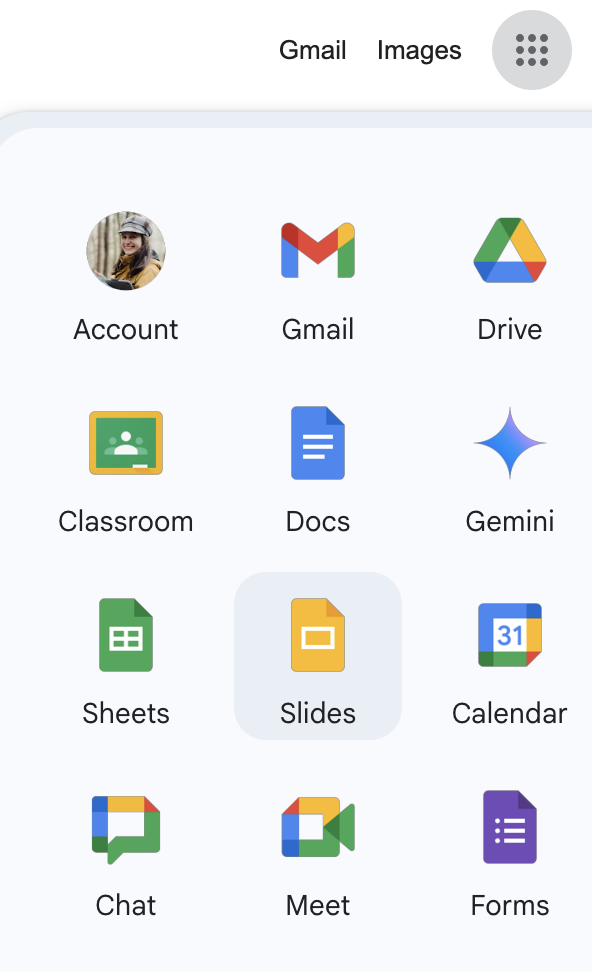
You can create an NCAS-branded document by clicking on ‘Slides’ in your Google apps menu.
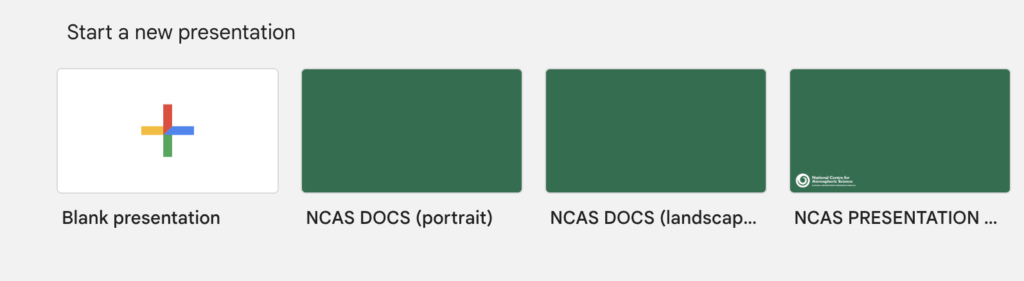
The templates will appear next to the ‘Blank presentation’ button. There are two options: portrait (vertical) and landscape (horizontal).
By clicking on the template, you will create your own version of the presentation which will be saved in your Google Drive. Rename it, and get started!
If you don’t see the template right away, just click on ‘Template gallery’.
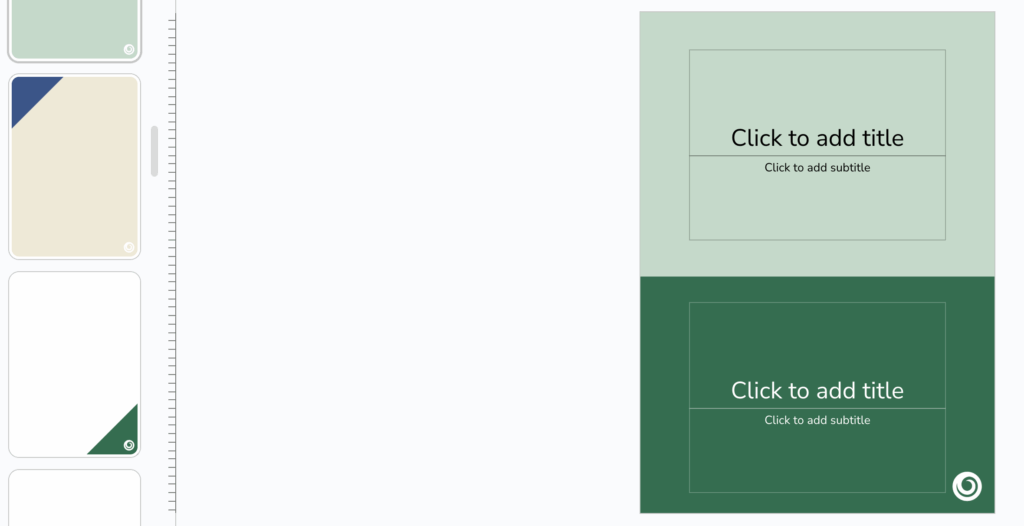
There are a variety of layouts available in the template. You will see them all on the left-hand side of your screen. Just pick and choose which options you want, and delete the rest.
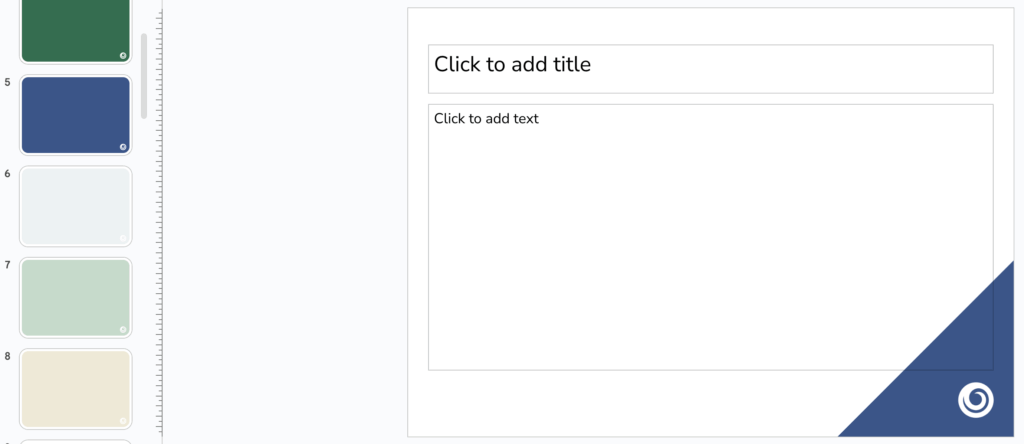
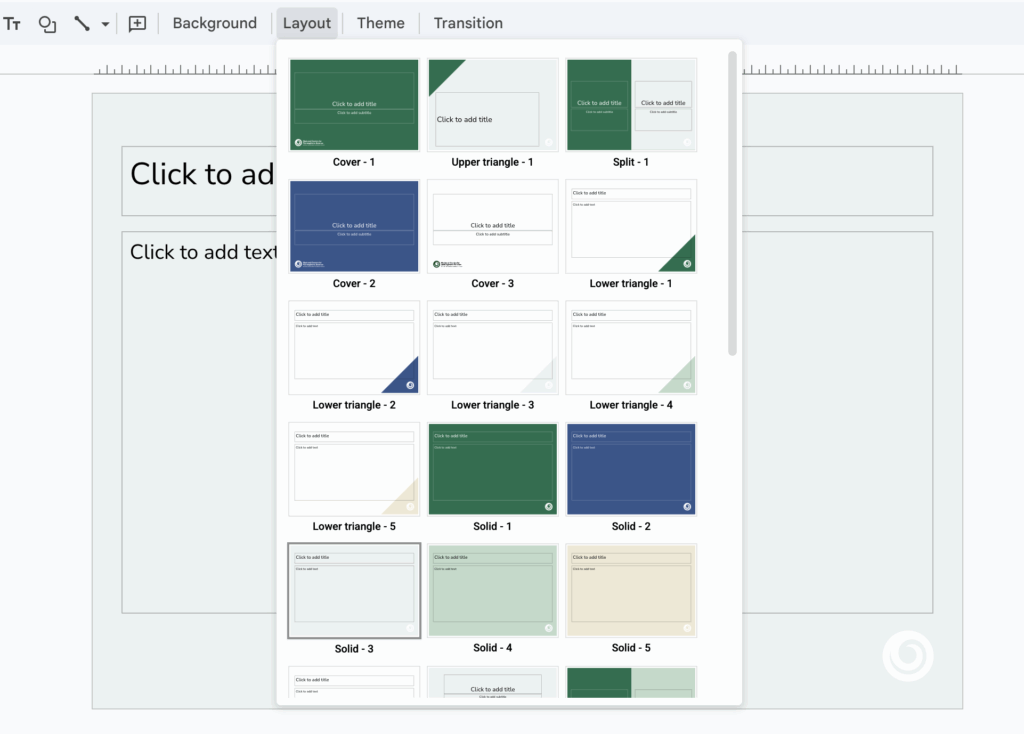
You can also see the templates under the ‘Layout’ drop-down menu.
There are three Cover options with the full NCAS logo. The other templates feature the small version of the NCAS logo.
Tips
To ensure that your document is clear and visually pleasing, please follow our top tips:
Don’t add any font colours outside of our brand colour pallete. You can choose between black, white, dark green (Earth), dark blue (Ocean), light blue (Sky), light green (Mint), and yellow (Sand). All these colours are pre-saved in the colour drop-out menu.
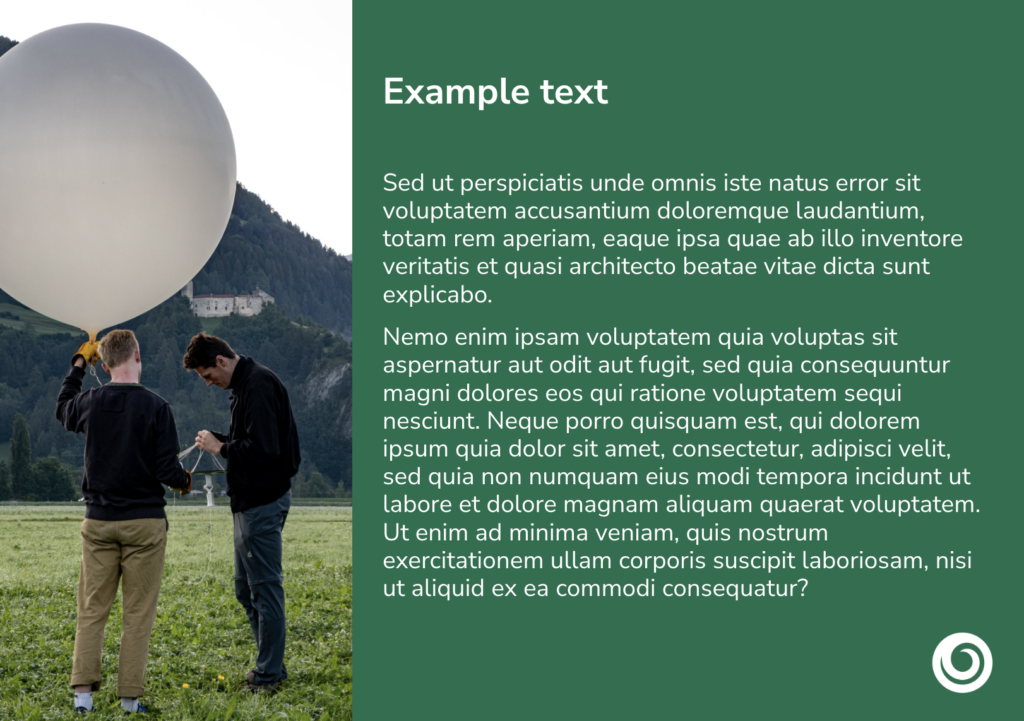
Don’t cover the logo. If your text is approaching the logo, just press the ‘Space’ key to bring it down to the line below. If you need to place a large image that covers the logo, cover the logo completely instead of leaving a part of it visible. But, if you do this, make sure that the majority of your pages still feature the logo.
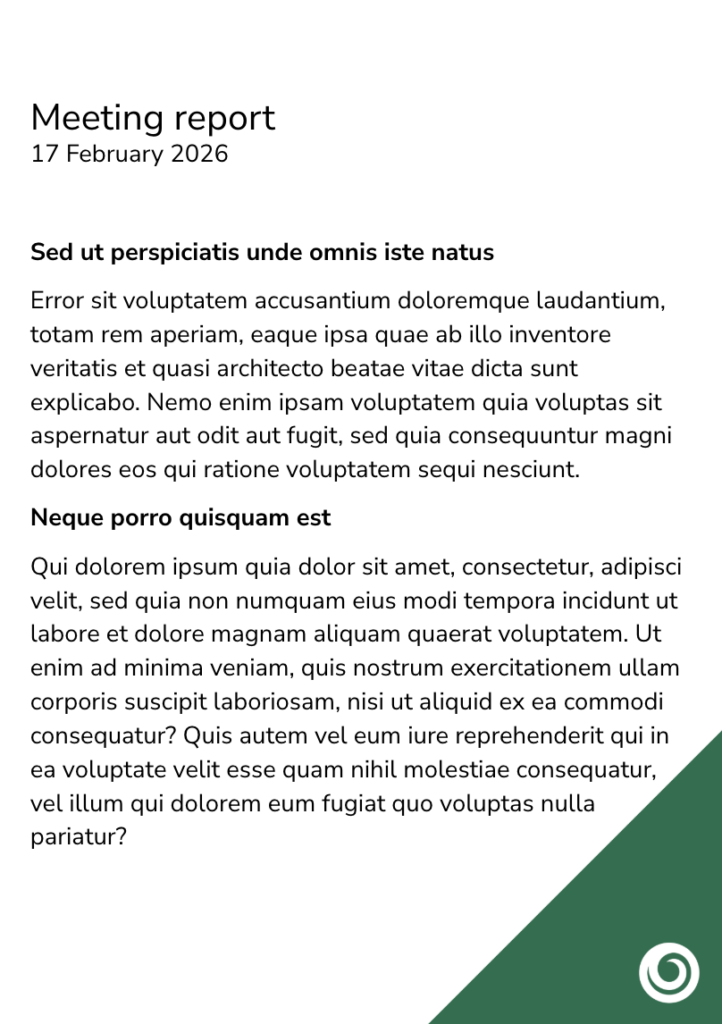
Similarly, please don’t cover the triangle elements on the designs. If you have too much text, choose a layout with a solid background.
If you want to add more shapes to your document, use circles or triangles. For example, you can place photos inside circles (not ovals), or create rectangular text boxes with one triangular corner (this shape is called ‘Flow Chart: Card’, and you can find it under the ‘Shapes’ icon on your toolbar next to the ‘Text Box’ icon).
Mix and match the font weight (Light, Medium, Extra Bold, etc.) to make the text more interesting. It’s better to stick to the same size and weight for the same type of text (headings, body, captions) for consistency.
FAQs
How do I create a new page?
Go to ‘Slide’ – ‘New slide’, then click the ‘Layout’ tab to explore all the different colour and layout options.
What font should I use?
We use Nunito Sans in NCAS-branded documents. This font is already pre-set in the template. Feel free to change the font size (we would suggest not to go under size 12) or the font type (Light, Medium, Bold, etc.). Please note: If you copy your text from elsewhere, use the ‘Paste without formatting’ option.
How do I add some colour to my document?
Change your text to one of our brand colours if you’d like. The NCAS colours are pre-set on the top of the colour menu under ‘Simple Light’. Please avoid using any other colours outside of our brand colour palette.
How do I add a logo to my document?
The NCAS logo is included on every page – please don’t cover it if possible. If you want to add another logo, there’s plenty of space to include more. It will look best if the logo is all-white on the dark green and dark blue layouts.
How do I download my document?
Go to ‘File’ – ‘Download’ – ‘PDF document’.
How do I print my document?
Go to ‘File’ – ‘Print’. We suggest choosing primarily white templates for printing to reduce the use of ink.
Why are we using ‘Slides’ instead of ‘Docs’?
Using Google Slides offers much more design flexibility than Google Docs. Google Docs make it really difficult to change background and add any design elements. By choosing to create documents via Google Slides, we’re able to offer a wide variety of personalised templates that are easy to use.